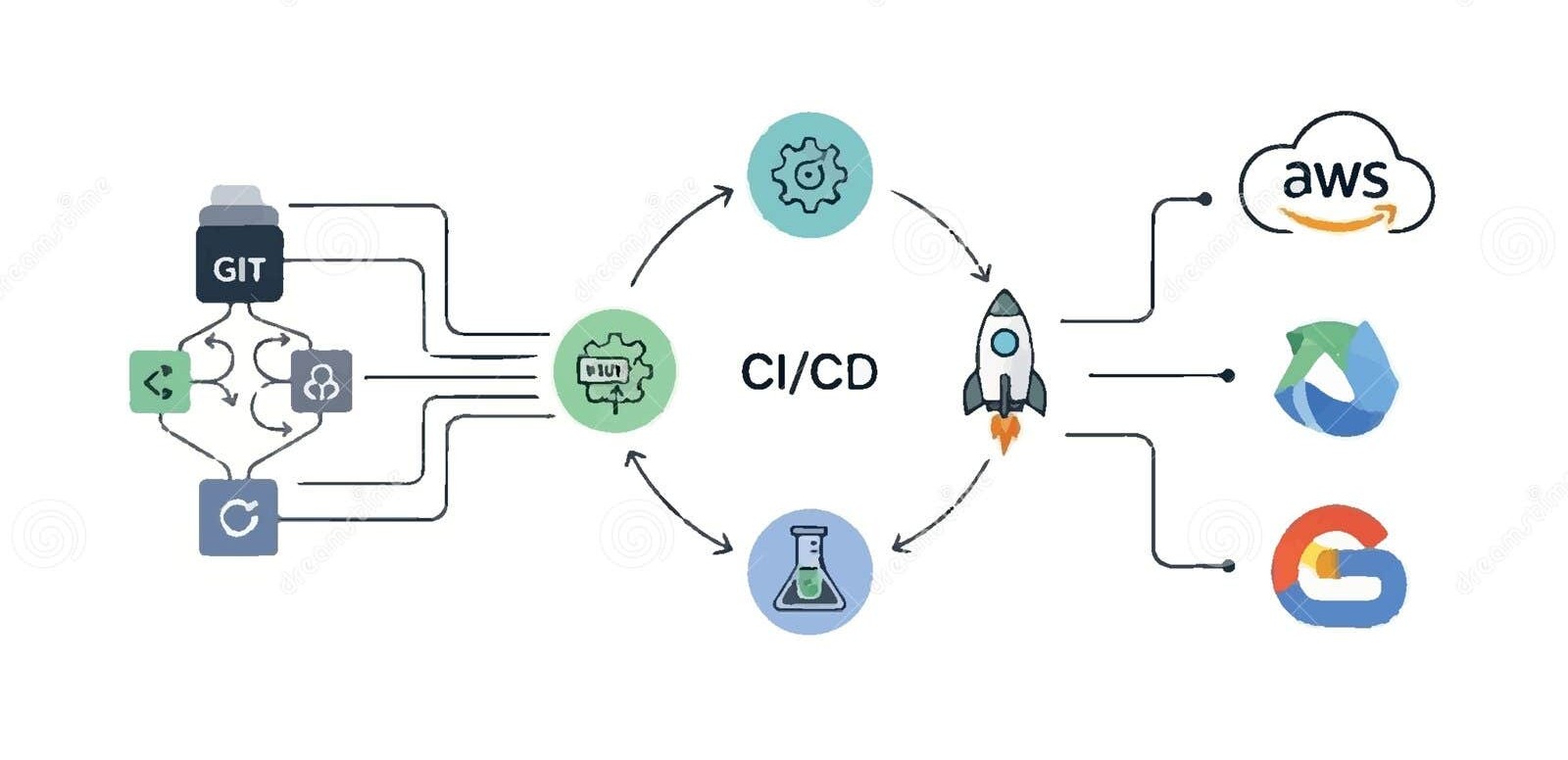
# Git CI/CD Setup Guide (GitHub Actions + HestiaCP Server)
## Part 1: Server Setup
### 1.1 Generate SSH key pair (on the server, as the deploy user)
**Which user and which key?**
- **Use the user that owns the web directory** (e.g. `user`, `mir`), not root. GitHub Actions will SSH as this user and run `git pull`, `pip`, etc. in that user’s home.
- **Generate a separate key for deploy**, not your normal login key. Put it in that user’s `~/.ssh/` (e.g. `~/.ssh/github_deploy`). This keeps deploy access distinct and easy to revoke.
- **If the server already has Git configured globally** (`git config --global user.name` / `user.email`): that only affects commit metadata. You still need a **dedicated SSH key pair** for GitHub Actions so the workflow can SSH in. Generate the key as below in the **deploy user’s** account.
```bash
# SSH into server as the user that owns the domain (e.g. user, mir) — not root
ssh user@your-server-ip
# Generate a dedicated deploy key (no passphrase)
ssh-keygen -t ed25519 -C "github-deploy" -f ~/.ssh/github_deploy -N ""
# -N "" = empty passphrase (required for non-interactive use in CI)
```
### 1.2 Authorize the key for SSH login
```bash
cat ~/.ssh/github_deploy.pub >> ~/.ssh/authorized_keys
chmod 600 ~/.ssh/authorized_keys
```
### 1.3 Copy the PRIVATE key (you'll paste it into GitHub secrets)
```bash
cat ~/.ssh/github_deploy
```
Save the full output (including `-----BEGIN` and `-----END` lines).
### 1.4 Clone the repo into the web directory (one-time, as mir user)
```bash
cd /home/mir/web/abzal.net/public_html
git clone git@github.com:YOUR_ORG/YOUR_REPO.git .
# Or if already cloned:
git remote set-url origin git@github.com:YOUR_ORG/YOUR_REPO.git
git fetch origin
git checkout dev
```
### 1.5 Set up Python virtualenv (one-time)
```bash
cd /home/mir/web/abzal.net/public_html
python3 -m venv env
source env/bin/activate
pip install -r requirements.txt
python manage.py migrate
python manage.py collectstatic --noinput
```
### 1.6 Allow deploy user to restart services without password (as root)
```bash
sudo visudo
```
Add at the bottom:
```
mir ALL=(ALL) NOPASSWD: /bin/systemctl restart portfolio, /bin/systemctl restart nginx
```
---
## Part 2: GitHub Configuration
### 2.1 Add Deploy Key (so the server can pull from repo)
1. On the server (as mir), generate a **separate** key for Git pull:
```bash
ssh-keygen -t ed25519 -C "deploy-key" -f ~/.ssh/deploy_key
cat ~/.ssh/deploy_key.pub
```
2. Go to **GitHub repo** → **Settings** → **Deploy keys** → **Add deploy key**
3. Paste the `.pub` content, give it a title (e.g. "HestiaCP Server"), check **Allow write access** if needed
4. On the server, configure Git to use this key:
```bash
nano ~/.ssh/config
```
Add:
```
Host github.com
IdentityFile ~/.ssh/deploy_key
StrictHostKeyChecking no
```
### 2.2 Add GitHub Secrets (for the deploy workflow)
Go to **GitHub repo** → **Settings** → **Secrets and variables** → **Actions** → **New repository secret**
| Secret Name | Value |
|-------------|-------|
| `HOST` | Your server's public IP (e.g. `34.x.x.x`) |
| `USERNAME` | `mir` |
| `SSH_KEY` | Full private key from step 1.3 (the `github_deploy` key) | cat ~/.ssh/github_deploy
| `PORT` | `22` (or your custom SSH port) |
### 2.3 Workflow file (already exists)
File: `.github/workflows/deploy.yml`
Triggers on push to `dev` branch. It SSHs into the server and runs:
- `git fetch` + `git reset --hard origin/dev`
- `pip install`, `migrate`, `collectstatic`
- Restart gunicorn + nginx
---
## Part 3: Test the Pipeline
```bash
# On your local machine
git checkout dev
git add .
git commit -m "test ci/cd"
git push origin dev
```
Go to **GitHub repo** → **Actions** tab to see the workflow run.
---
## Summary
| Where | What |
|-------|------|
| Server (mir user) | Generate 2 SSH keys: one for GitHub Actions SSH, one for git pull |
| Server (root) | `visudo` to allow passwordless restart of services |
| GitHub → Deploy keys | Add the git pull public key |
| GitHub → Secrets | Add HOST, USERNAME, SSH_KEY (private), PORT |
| GitHub → Actions | Push to `dev` branch triggers deploy |
Comments (0)
No comments yet. Be the first to comment!
You must be logged in to comment.
Login